
This option allows you to view, edit or add Daily Deposit data without changing the corresponding underlying data in POS.
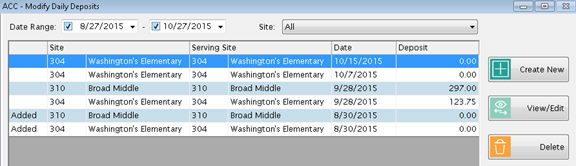
The screen shows all the daily deposits that have been closed in POS, plus any additional days that have been added through Accountability.
Any time you need to correct a closed day without going back through POS, you could edit on this screen.
Example:if a deposit amount was entered incorrectly in POS, you can correct it here. Or if some meals were not entered in POS, you can edit the meal counts here.
If a day was not entered at all in POS (maybe the network was down, or it could be a small satellite site that does not have access to Meals Plus) and you just want to enter the summarized daily participation data, you could add it here. You could also add a day if it has been entered but not been closed yet in POS and you need the summarized data for accounting purposes.
The AccountabilityDaily Deposit screen shows all the days that have been closed in POS, plus any additional days that have been added through Accountability.
In POS, the Daily Deposit sales and accruals are calculated from the Transaction History table and the results are saved when the Daily Deposit is closed.
In Accountability, the Daily Deposit report only has summarized data. It can be directly edited and new days can also be added. Any changes are saved only in Accountability.
In Accountability, there is a separate daily deposit row for each Primary and Secondary reimbursement site.
 NOTE:This
is different from the Daily Deposit in POS, where there is only one Daily
Deposit per Serving Site which combines all Primary and Secondary transactions
into one Daily Deposit report.
NOTE:This
is different from the Daily Deposit in POS, where there is only one Daily
Deposit per Serving Site which combines all Primary and Secondary transactions
into one Daily Deposit report.
The reason for this: In POS, students from different schools (reimbursement sites) can share the same cafeteria, so one daily deposit report can contain transactions from multiple schools. But in Accountability, the reimbursement sites are separated in order to generate separate accounting entries for each site.
When you open the Daily Deposit screen you will see all the activity for the past two months, for all sites, but you can change the date range or site selection.
The most recent dates are at the top of the screen.
The grid is sorted by Serving Site and then Site. You can change the sort by clicking on any column heading.
To edit a Daily Deposit, highlight the record and click View/Edit.
When the General Ledger type is School LINQ, this data will post to School LINQ to be used on the Plate Costs report in the School Nutrition menu.
There are three tabs on the Daily Deposit: Sales, Accruals, and Summary.

On the Sales tab, you can edit the quantities served and sales amounts.
This information is on the first page of the POSDaily Deposit report.
Remember, the POSDaily Deposit combines all associated Primary/Secondary sites. Accountability reports each site separately.
You can also see this information on the Participation report from POS or Accountability. The Participation report shows each site separately in Accountability.
Double-click on any field in the grid to open the edit window.
Make any required corrections on Quantity or Sales amount and then click OK.
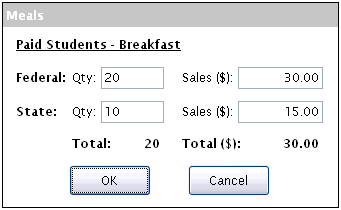
Federal reimbursable meals are items that have Nutrition Code 1 in POS: Administration: Item Setup.
State reimbursable meals may also be entered if the school participates in a special program that gives additional reimbursement from state or local sources.
 NOTE:State reimbursable meals are
already included in with the Federal meals, so adding or removing State
meals will not change the meal totals.
NOTE:State reimbursable meals are
already included in with the Federal meals, so adding or removing State
meals will not change the meal totals.
If you want to print a report of state reimbursable meals, use the Participation report and check the box to Include Special Milk and State Reimbursable.
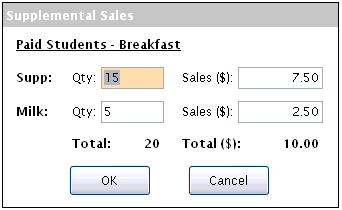
Supp includes all supplemental sales except milk.
Milk is reported separately because some state reports require a breakdown on extra milk sales.
The two counts will be added together to get the Total Supplemental Sales.
On the Accruals tab, you can edit the Charges and Prepayments amounts.
This information is on the second page of the POS Daily Deposit report.
Remember, the POS Daily Deposit combines all associated Primary/Secondary sites.
You can also see it on the Receipts and Collections report from POS or Accountability. The Receipts and Collections report shows each site separately.
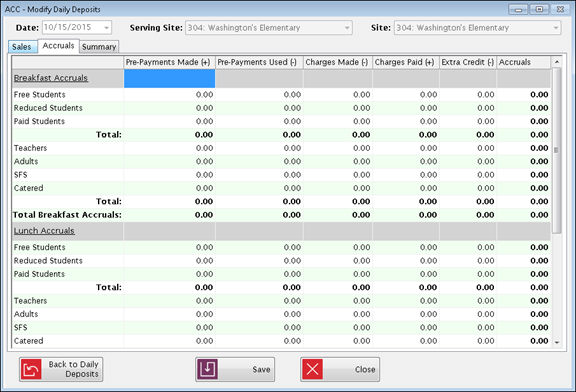
Any changes you make here will be reflected in the calculated Receipts on the Summary tab.
On the Summary tab, you can edit the Attendance, Membership, Deposit Amount, and other additional information.
Use the Summary Tab for editing the Summary information:
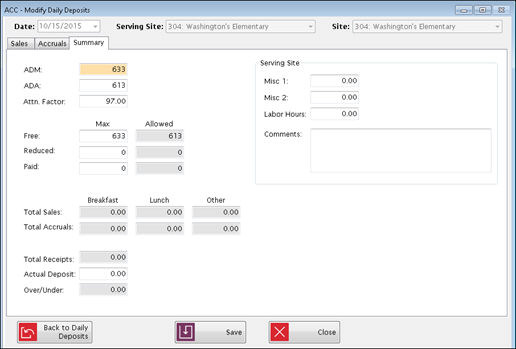
You can change the ADM (Membership) and ADA (Attendance). This information is used for the Accuclaim Edit Report.
The Total Sales and Accruals are summarized here; they can be edited from the other tabs.
Total Receipts is calculated from the Sales and Accruals data.
Actual Deposit can be corrected here if necessary.
Over/Under is the difference between the Deposit and the calculated receipts.
Serving Site information will only be displayed if the site selected is a Primary Site.
When everything has been reviewed and edited, click Save.
The
 button
is enabled if the record was originally added in Accountability and
there is no POS Daily Deposit
for that date.
button
is enabled if the record was originally added in Accountability and
there is no POS Daily Deposit
for that date.
The Clear Changes button is enabled instead of Delete if the record came from POS and was edited in Accountability. The closed POSDaily Deposit will not be changed.
If the record came from POS and there is no entry in Accountability, there is no Delete or Clear option.
©2018 EMS LINQ Inc.
ACC Version 9, revised 07/2018