Click  to open the Non-Inventory PO screen.
This option is for creating Purchase Orders for non-Inventory expenses, such as utility bills and repairs.
Non-Inventory Purchase Orders will create encumbrances in the general ledger and can be referenced when accruing invoices, but they will not affect On Hand inventory.
Click
to open the Non-Inventory PO screen.
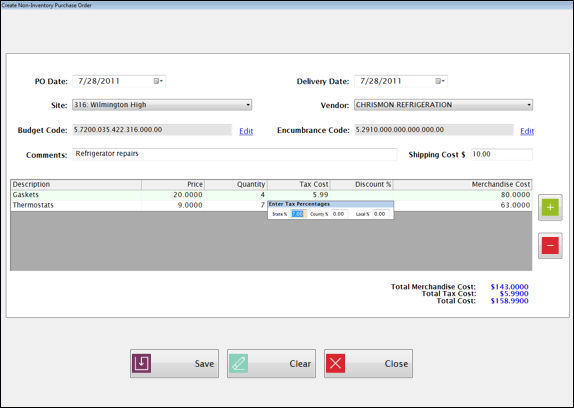
Select the PO Date and Delivery Date from the Date fields.
Select the Site from the Site dropdown list.
Select the Vendor from the Vendor dropdown list.
o If a signature image has been uploaded to Control File: Purchase Orders tab, it will automatically print on the Purchase Order Journal when created from Process Orders or Create PO (NI).
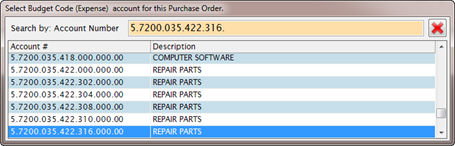
Click Edit to open a popup window where you select the account code.
o It will show a list of available accounts. As you type an account number into the list it will automatically position to the closest match.
o When the account you want is highlighted, double-click or enter to select it.
o You can also use the scroll bar to browse through the list.
Comments are optional. They will be printed on the Purchase Order.
Enter the shipping cost for the Purchase Order in the Shipping Cost field, if applicable.
NOTE:
If there is shipping on a PO with multiple rows, it prorates the shipping
amount based on each row’s percent of he total.
If part of the PO is taxable, the Shipping that applies to the taxed portion
of the PO is also taxable.
Example: Two (2) rows on the PO, 1 @ $600 with 10% tax, 1 @ $400 with no tax.
§ Without shipping, calculated tax is $60, total PO is $1060.
§ Add shipping of $100. Calculated tax increases to $66 because 60% of the shipping is allocated to the taxable item.
§ If you want all of the shipping to be taxed, enter it as a separate PO line, instead of entering it in the Shipping field at the top.
Click the green plus button to add a new line.
Enter a unique description for each line in the Description fields.
Enter the price per item in the Price fields.
Enter the number of items being ordered in the Quantity fields.
To enter tax, type a number into the Tax Cost field. It will open a window where you can enter the State, County and Local percentages. The tax cost will be calculated automatically based on the percentages entered.

o To edit or verify the percentage entered here, highlight the Tax Cost field and hit Enter on the keyboard. The Enter Tax Percentages box will reappear.
Enter a discount percentage if applicable for this invoice line in the Discount % field.
Merchandise Cost is automatically calculated for each line, based on the information entered.
o Running totals for Merchandise Cost, Tax Cost and Total Cost are displayed below the grid.
o When you are finished entering all the information, click Save to save the Purchase Order and update the general ledger.
§ It will create the PO and display the Purchase Order Journal Report.
o If a signature image has been uploaded to Control File: Purchase Orders tab, it will automatically print on the Purchase Order Journal.
o You can send the report to the printer or export it to a PDF file using the icon at the top of the Preview.
o The completed Purchase Order will be displayed in the Manage Purchase Order summary screen and can be printed using the Print button.
§ If a signature image has been uploaded to Control File: Purchase Orders tab, it will automatically print on the Purchase Order