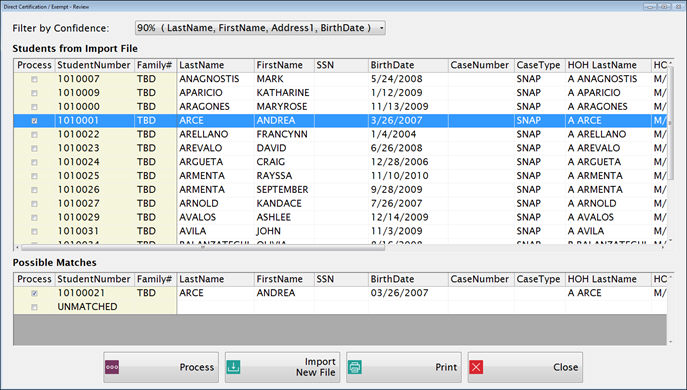
This screen shows all the unmatched or duplicate records from the DC import.
Select the Confidence level that you want to review from the Filter by Confidence dropdown list.
NOTE:If you see a 100% confidence level, it means that there is a match on an SSN but the application cannot be processed for some other reason, such as multiple students with the same SSN in either the MP Student table or the Direct Cert file.
This grid displays the information that came in from the Direct Cert, Kin-GAP or Exempt Import files.
If the Date of Birth was not imported, it will show a default value of 01/01/1900.
If you click on a row in this grid, it will display all the matches for that student in the bottom grid.
If you check the Process box in the top grid, and there is only one match found, it will fill in the student number in the top grid and the record will also be selected in the bottom grid.
This grid displays the possible matches found in the Meals PlusStudent file.
For multiple matches, you will need to select a row in the bottom grid.
There is also a row for Unmatched. Check this box if you want to move the student to the unmatched list.
You can mark multiple students and then process them all at once.
Click  to update the selected students.
Processing Unmatched Students

Since Unmatched students do not exist in the Meals Plus Student table, you will need to provide enough information to set up a student record for them.
Enter the Student Number and select a Site. The other information is recommended but not required. You can edit the information on this screen.
©2018 EMS LINQ, Inc.
Student Eligibility, revised 7/2018