
This screen is for recording inventory transfers between schools.
NOTE: You must have security access to the From site in order to process or view transfers.
Click the  button
to create a transfer.
button
to create a transfer.
Check the box next to a Transfer and click
the  button to display details
of the transfer.
button to display details
of the transfer.
Click the  button
to attach documents to
a record. Please
see Document Cabinet for complete
instructions.
button
to attach documents to
a record. Please
see Document Cabinet for complete
instructions.
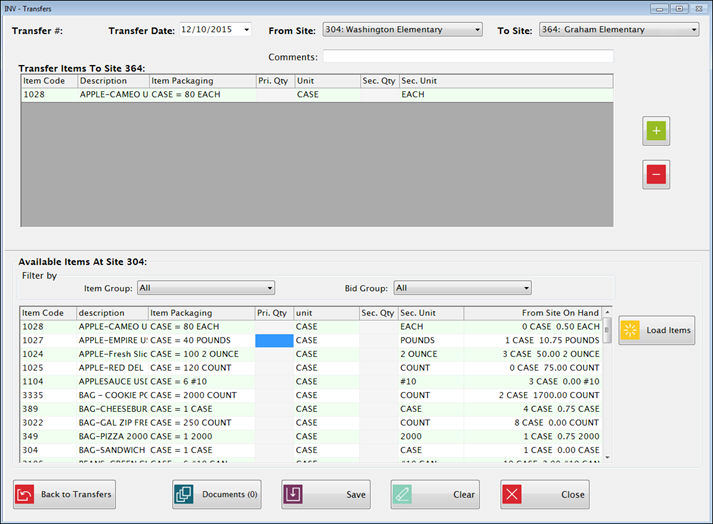
Select the transfer date from the Transfer Date dropdown list.
o The On Hand quantity will be based on the transaction date entered.
Select the site to give the transfer from the From Site dropdown list.
Select the site to receive the transfer from the To Site dropdown list.
This grid displays the items being transferred.
Click the green plus sign to add a row to enter in an item to add.
Click Load Items to load all the items on hand at the From Site.
This screen shows the On Hand in a summarized decimal format. If you want to see the details, you can use the View FIFO button of the On Hand Report.
Enter the Primary or Secondary quantities to be transferred.
When you are finished, click Save.
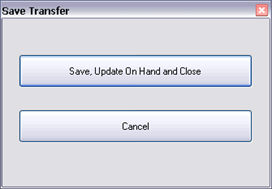
Click Save, Update On Hand and Close to process the transfer immediately.
Click Cancel if you do not want to complete the transfer. The transaction will not be saved.