Notification Letters
This screen handles both Notification
and Direct Certified letters.
Whenever you enter new applications or make
changes to existing applications, be sure to run Unprinted
letters (Notification and/or Direct Certified) from the General
tab.
 How does it determine if a letter needs
to be printed/emailed?
How does it determine if a letter needs
to be printed/emailed?
What determines
if it prints a Direct Certified or Notification Letter?
-
If a new student is added to a Direct Certified
household, it will print a new letter listing all the students’ names.
-
If there is a Direct
Certified Foster Child, but none of the non-foster students on
the application are Direct Certified:
- It will print a Direct Certified letter for the foster child and a Notification letter for the other students (since foster Direct Certification does not extend to other family members).
GENERAL
-
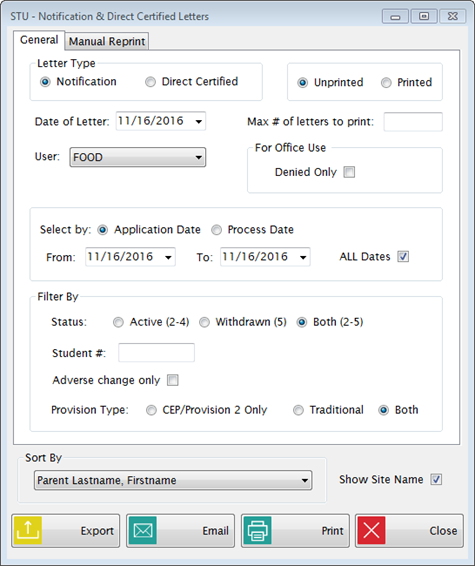
Enter the date of the letter in the Date of Letter field. This
will print on the letter.
-
Select ALL
users or a single user name from the User dropdown list.
-
Enter
an amount in the Max # of
letters to print text field. You
do not need to enter anything here unless you need to limit the number
of letters to be sent at one time to the printer.
SELECT BY
FILTER BY
-
Select Active,
Withdrawn or Both
from the Status dropdown
list.
-
If
you only want to print a letter for one student, enter the student
number in the Student #
text field.
-
Check the Adverse
change only box to print letters just for students who have had
an adverse change to their status. You can then create an Export
file to use for notifying non-adverse changes using an automated phone
system.
-
Check CEP/Provision
2, Traditional or Both
from the Provision Type
section to filter to only print letters per provision type.
SORT BY
-
Parent
Lastname, Firstname sorts by head of household name.
-
Zipcode
of Address 3, Parent Lastname, Firstname can be used if you are
mailing the letters by zip code.
-
Student
SiteID, Teacher, Lastname, Firstname can be used if you distribute
the letters in the classroom. It will use the first student in each
household for sorting.
-
Check Show
Site Name to include each child’s school listed along with their
name.
-
Click Print
to see a preview of the letters on the screen.
- Click Email to email the meal status letter a parent/guardian.
- Users can email any letter that is here.

- Click Yes to email the letters or No to cancel.
-
Click the printer icon  at
the top of the preview screen to send the job to the printer.
at
the top of the preview screen to send the job to the printer.
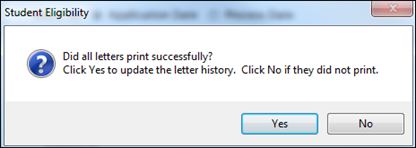
- When you close the preview, it will ask if the letters printed successfully. If you click Yes, it will set the applications to Printed and update the letter history.
-
MANUAL REPRINT
Use this option if you would
like to reprint letters that have already been printed (with Yes
to update history) from the General
tab.
©2019
EMS LINQ, Inc.
www.mealsplus.com
Student Eligibility, revised 7/2018